Documentation
Famora.EE user guide
Everything you need to get the most out of Famora.EE. Below is a short guide to every part of the app — from creating your family to the calendar, lists, family map, parental controls, chat and more. Use the contents to jump to any section.
1Getting started
Setting up your family takes a couple of minutes. You sign in with your e-mail address — no password to remember — create your family, and invite the people who belong to it.
- Enter your e-mail address. We send you a 6-digit code — type it in and you're signed in. There is no password to forget.
- Create your family and give it a name. Every new family gets a 14-day free trial with all features unlocked.
- Invite members with a QR code, a short invite code, or by e-mail — they join in seconds.
- Assign roles: Admin manages everything (members, settings, billing), Adult can use and organise, Child gets a simpler, protected view.
2Today
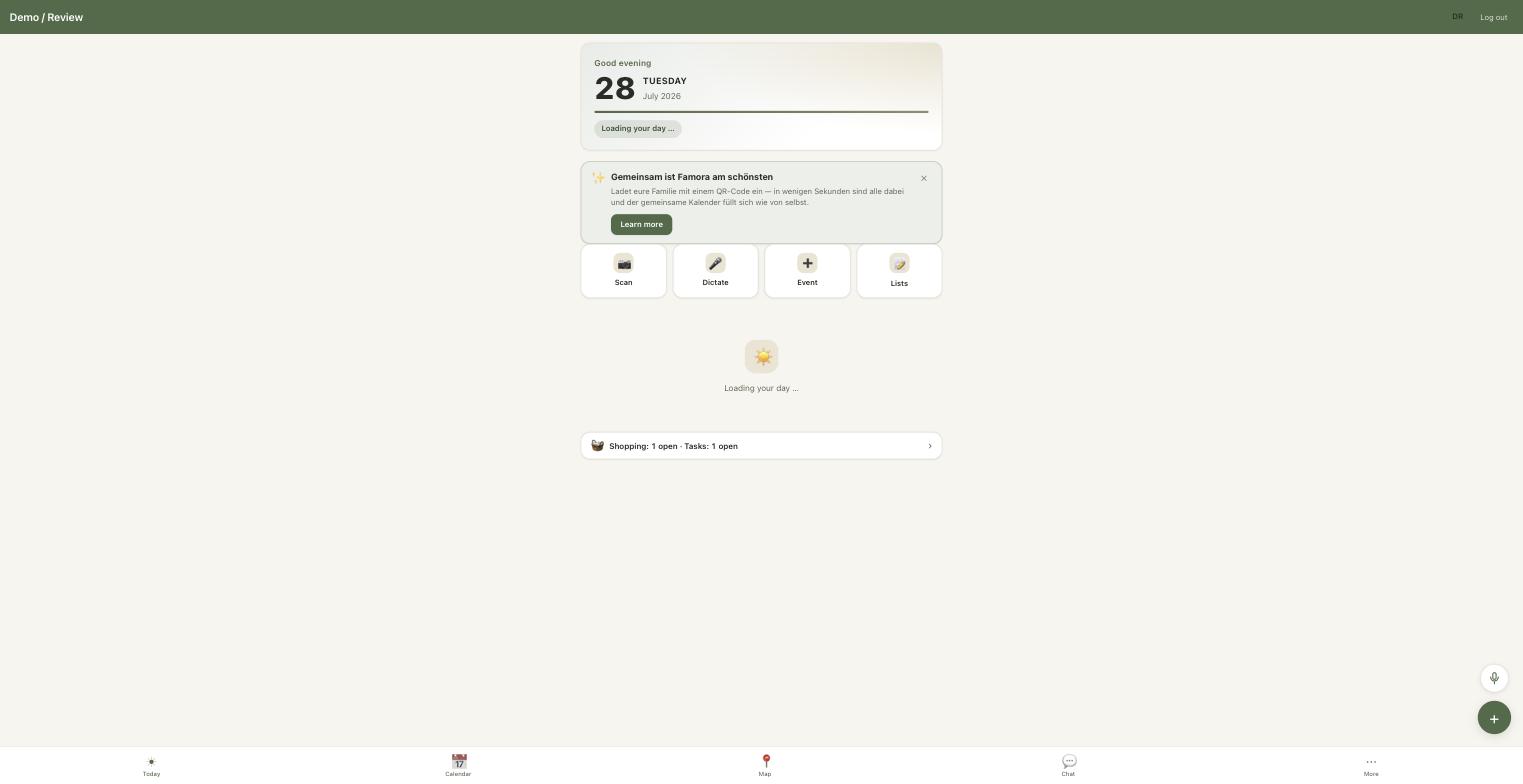
The Today screen is your daily home base: everything happening today at a glance, plus quick actions to add things fast.
- See today's events, reminders and open tasks in one scrollable overview.
- Tap Scan to photograph a poster or flyer — Famora reads the date, time and place and creates the event for you (text recognition runs on your device).
- Tap Dictate to speak an event instead of typing it.
- Tap Event to add an appointment by hand, or Lists to jump to your shopping and task lists.
3Calendar
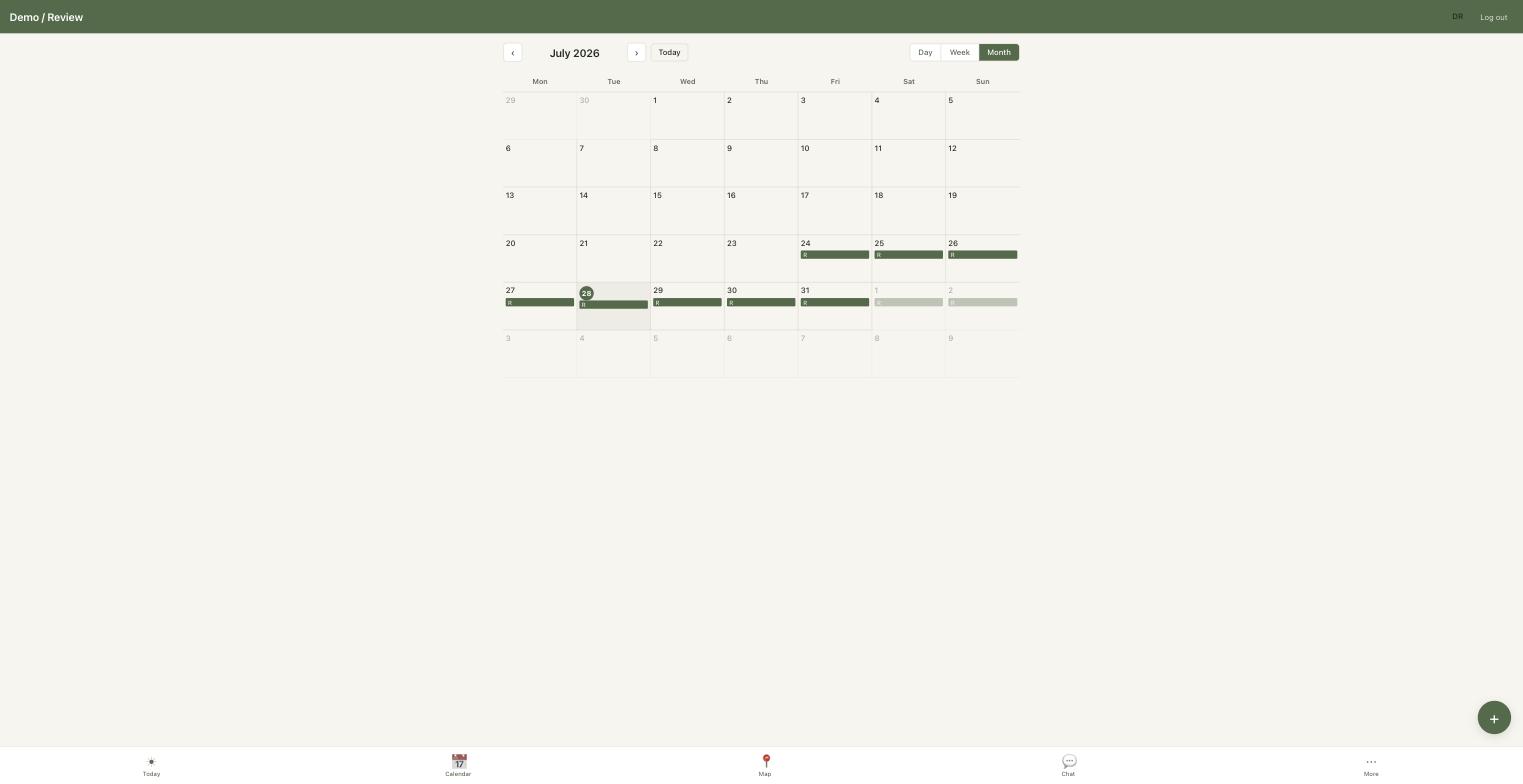
The shared family calendar keeps everyone on the same page, with Month, Week and Day views and a colour for each member.
- Switch between Month, Week and Day views; each member has their own colour so you can see at a glance who is busy.
- Create an event with a time, participants and RSVP so everyone can accept or decline.
- Set repeating events — including specific weekdays — and Famora warns you about scheduling conflicts.
- Group events into Categories you can pause; pausing a category mutes its reminders without deleting anything.
- Turn on public holidays for your country, and subscribe to or export the whole family calendar as an ICS feed for Apple Calendar, Google Calendar or Outlook.
4Lists
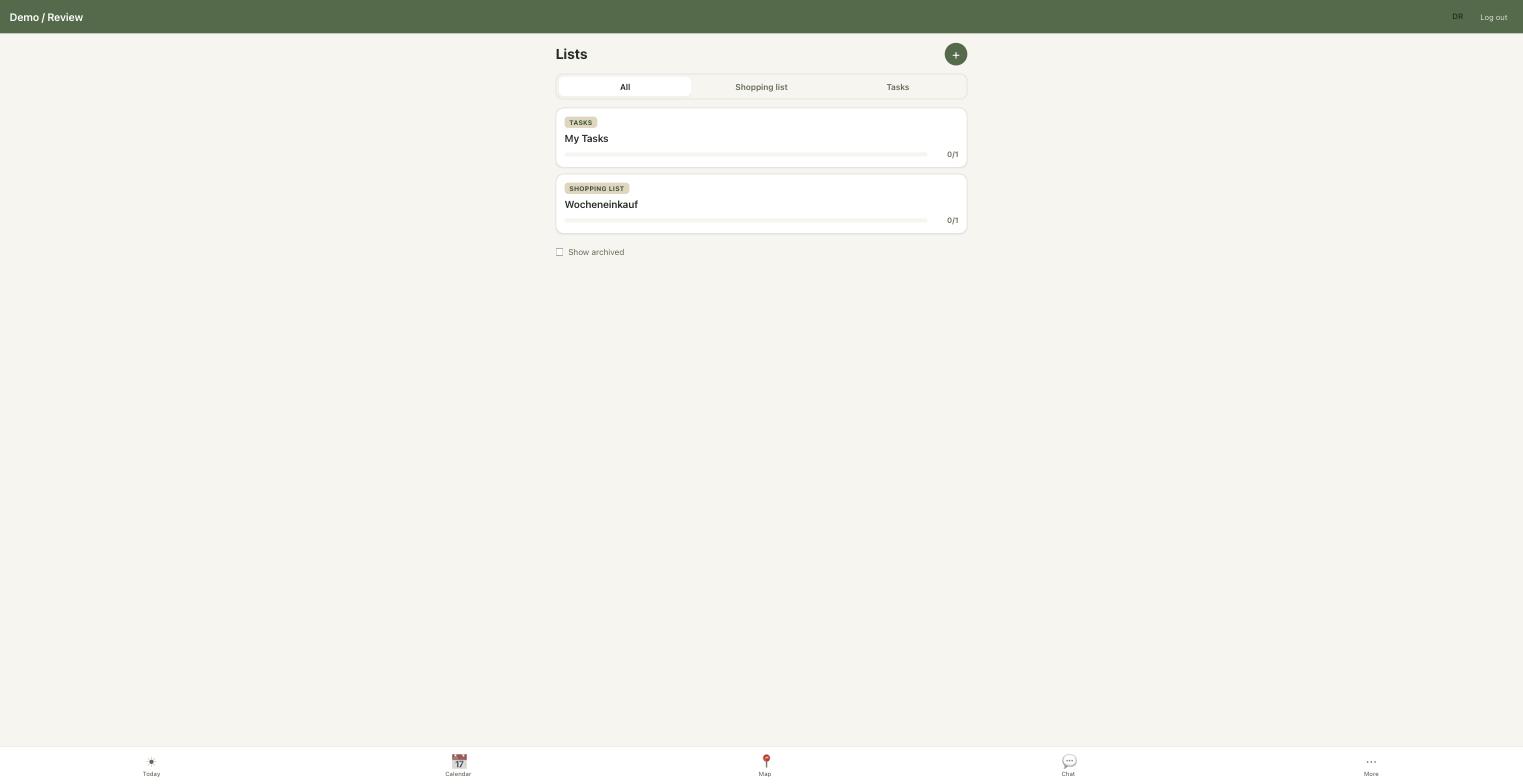
Shared shopping and task lists that update live for everyone in the family.
- Create a Shopping list or a Task list and add items.
- Check items off as you go — everyone sees the change instantly, so nobody buys the milk twice.
- Anyone in the family can add to a list, so the weekly shop builds itself.
5Map & Places
The family map shows where everyone is — but only with each member's explicit consent — and Safe places tell you when someone arrives or leaves.
- Open the map to see family members who have chosen to share their location.
- Each member controls their own “share my location” toggle — location is never shared without consent.
- Create a Safe place (a geofence) from an address, such as school or home.
- Famora notifies the family when someone arrives at or leaves a Safe place.
6Parental tracking lock
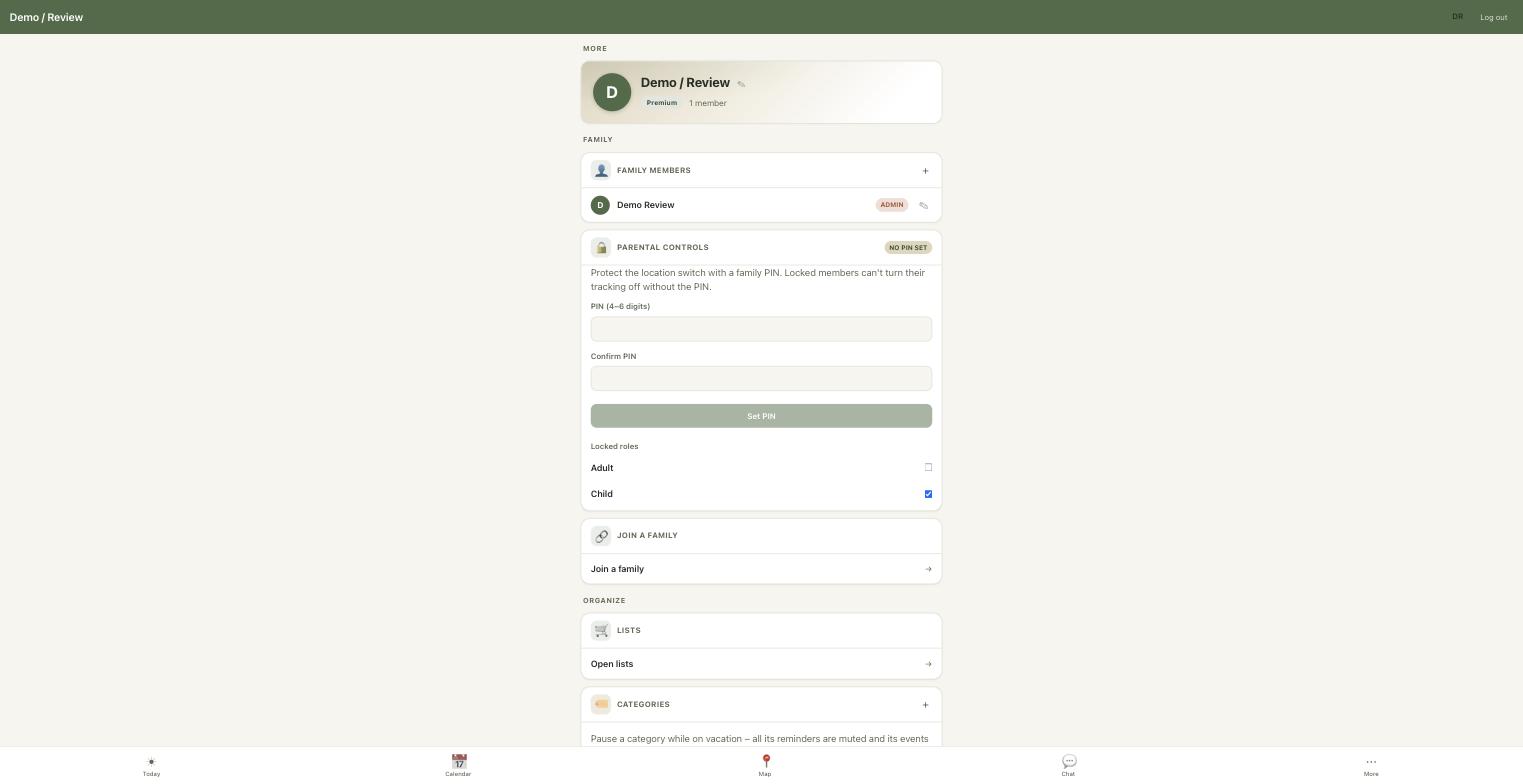
An Admin — say, mum — can protect the location toggle with a family PIN so younger members can't quietly switch their tracking off.
- Go to More → Parental Controls and set a family PIN.
- Choose which roles are locked; Child is locked by default.
- A locked member can no longer turn their own location sharing off without entering the PIN.
- After 3 wrong PIN attempts, all admins get an alert that includes the member's last known location.
7Family activity chat
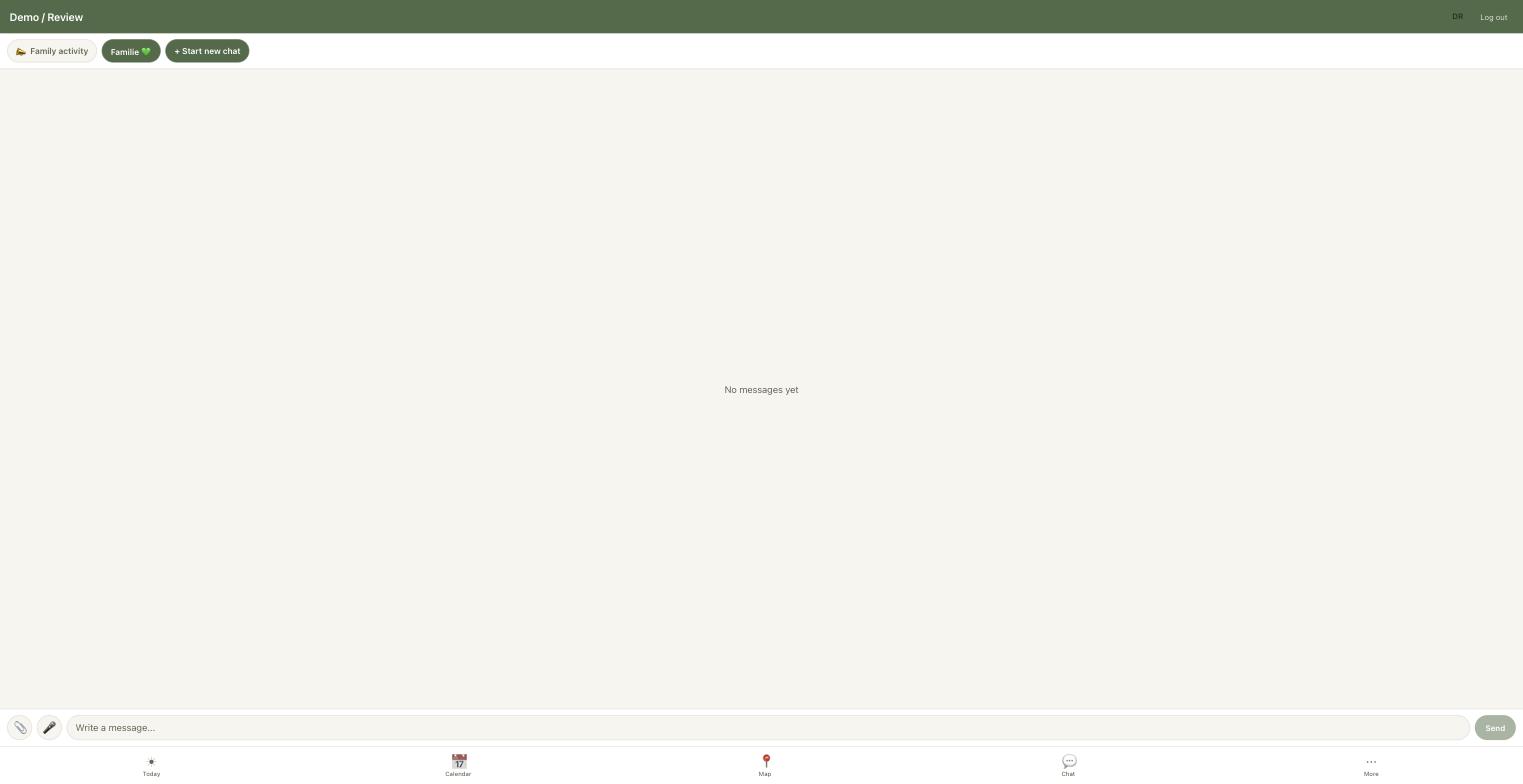
Arrival and departure notifications also land in a pinned, read-only “Family activity” thread in Chat, so you can scroll back through the history instead of hunting through push notifications.
- Open Chat and find the pinned “Family activity” thread at the top.
- Read the full history of who arrived at or left each Safe place, with times.
- The thread is read-only — it's a log, not a conversation.
8Chat
A private chat just for your family, with photo and voice messages.
- Send messages, photos and voice notes to the whole family.
- Everything is encrypted in transit and at rest.
- Photo and voice attachments delete themselves automatically after 30 days.
9Voice & Scan
Two fast ways to create events without typing — both process your input privately.
- Dictate an event: say something like “Dentist for Emma tomorrow at 2 pm” and Famora creates the appointment.
- Scan a poster or flyer and Famora turns the printed date, time and place into an event.
- Text recognition and voice run on your device — the photo stays private.
10Evening summary
An optional daily nudge so tomorrow never catches you off guard.
- Turn on the evening summary in More → settings to get a daily push (and optional e-mail) with tomorrow's events.
- Choose the time it arrives and the weekdays it should run.
- Pick whose events to include, so you only see what's relevant to you.
11Support & Feedback
Reach the team or share an idea straight from the app.
- Go to More → Support.
- Fill in your name, a subject and your message.
- Send a support request or leave feedback — we read every message.
12Account & security
Your family account stays protected, and your data stays yours.
- Enable two-factor authentication with an authenticator app for an extra layer of security.
- Recover your account via your phone number if you ever get locked out.
- The login screen shows how many attempts you have left and starts a cooldown timer if you're rate-limited.
- Export all your data or delete your account at any time, right inside the app (GDPR-compliant).
13Plans
Every family starts with a 14-day free trial, then picks the plan that fits.
- Basis — the simple entry plan for small families.
- Family — everything that keeps a family organised, with unlimited members.
- Premium — adds dictation, read-aloud and poster scanning.
- Redeem a promo or voucher code if you have one. Current prices are shown in the app.